Post your task
Describe what you want to accomplish, follow the steps in the task window, and use the canvas to track your work and connect related tasks.
1. Create a task
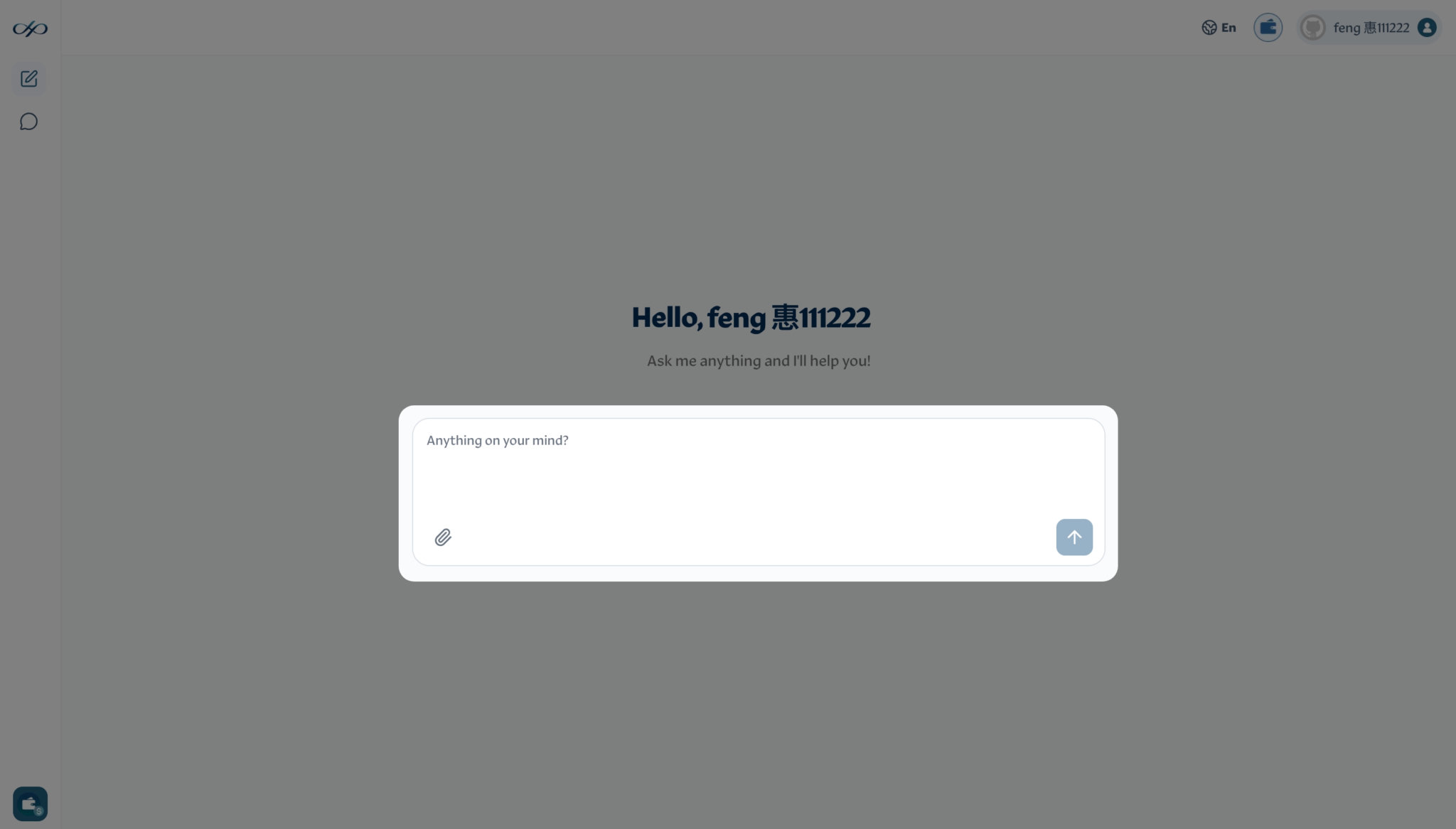
Sign in to PYRA, enter the task you want to complete in the message box, and click Send to create it.
2. Follow the steps in the task window
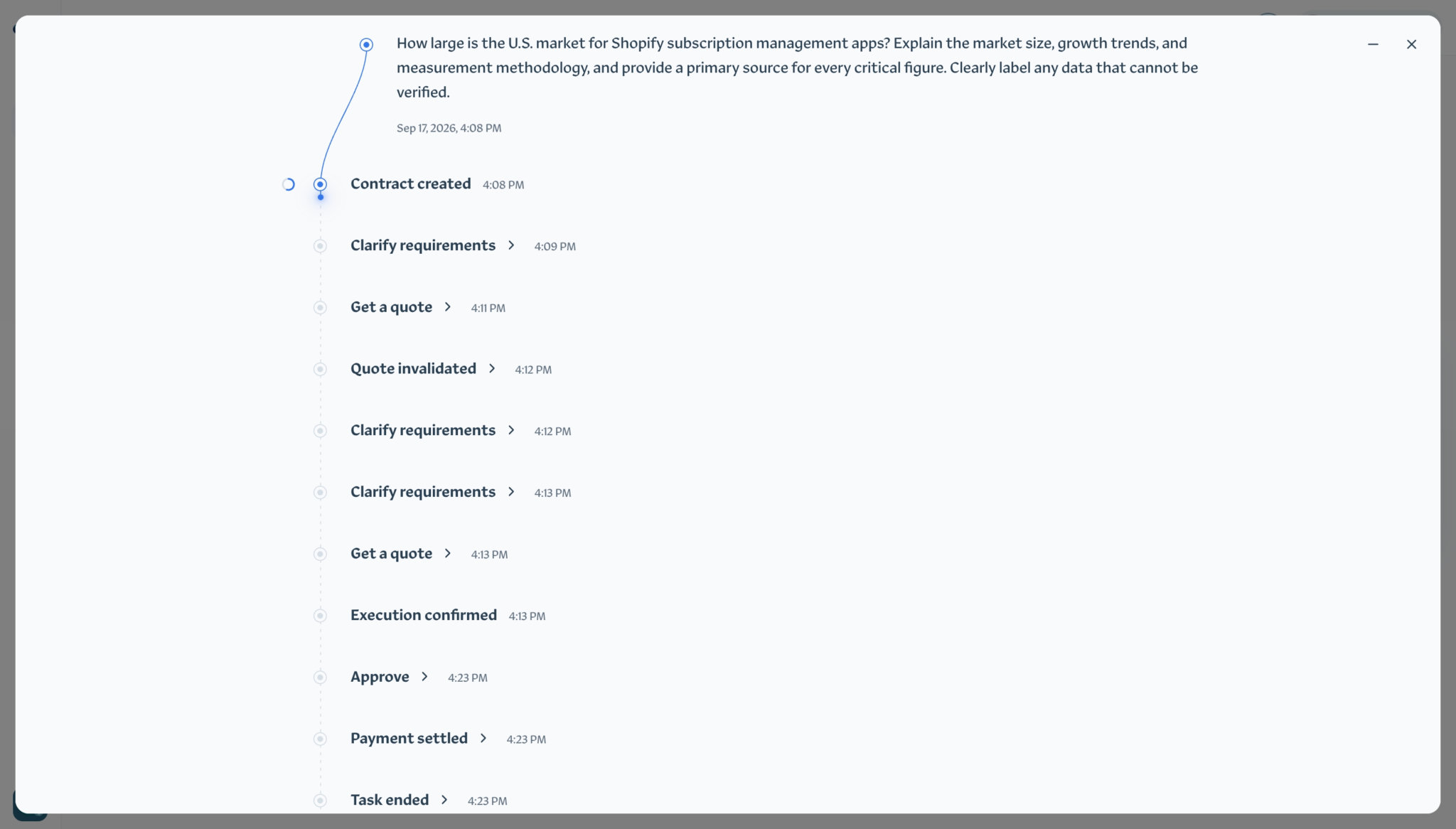
The new task window opens automatically. Follow the on-screen steps to move your task through to completion.
You can click Close (×) at the top right at any time to return to the canvas. Task progress is saved in real time, and closing the window does not stop the task from running. You can also click Minimize (−) beside it to keep an eye on the task’s live progress while working on the canvas.
3. Work with tasks on the canvas
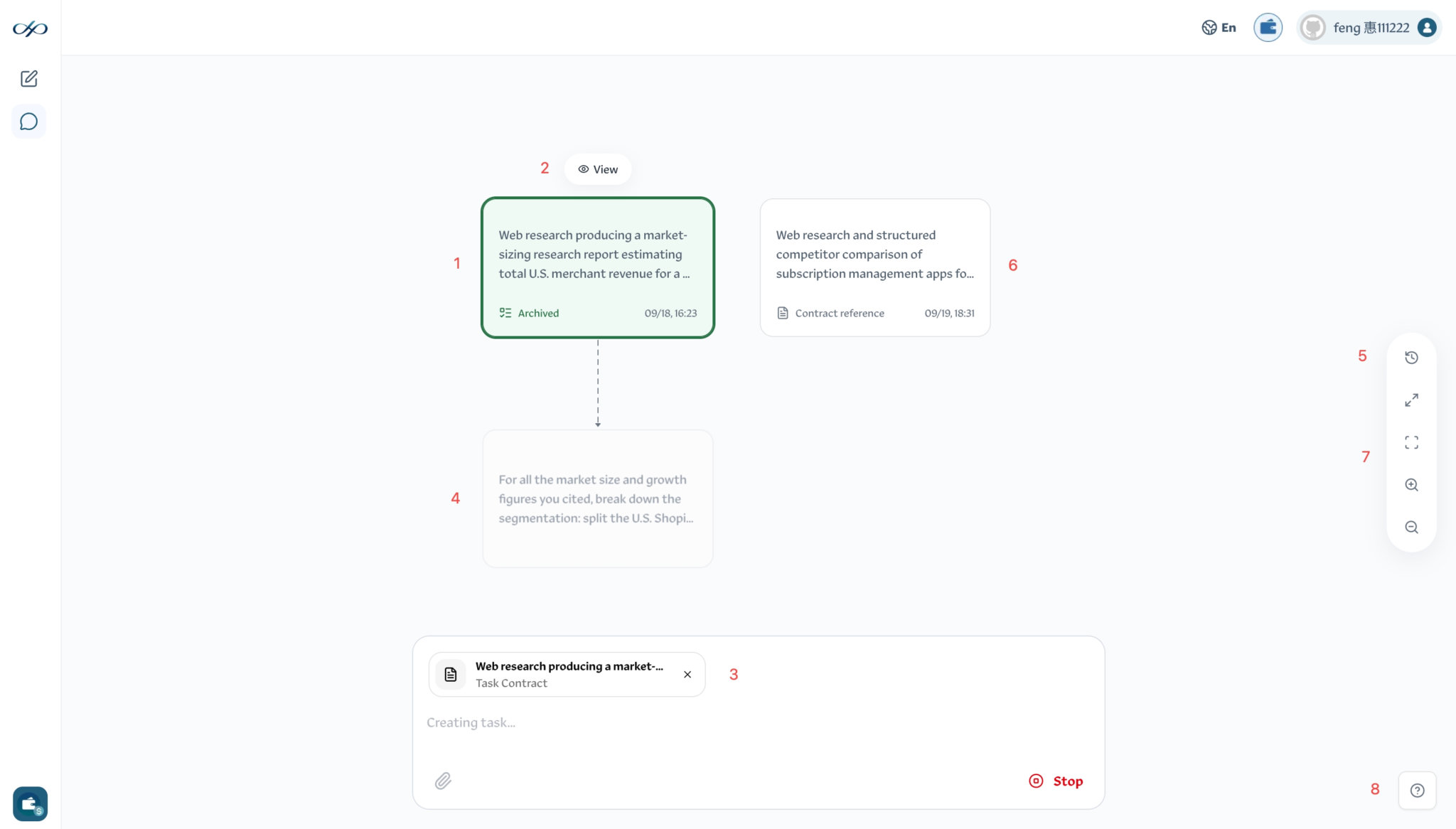
The numbers below match the labels in the screenshot.
-
Task node. Each task appears as a node on the canvas. Click a node to select and highlight it.
-
Node toolbar. Selecting a node reveals a toolbar above it. Click View to open its details in the task window.
-
References in the composer. When you select an eligible node, its contract appears in the message box (the composer) as a reference for your next task. Only task nodes with the Archived status and Contract reference nodes can be used as references. Hold Command (Mac) or Ctrl (Windows/Linux) while clicking nodes to select multiple contracts.
-
Connected tasks. Enter and send a new task with your references selected. An arrow connects each referenced node to the new task node, showing which earlier work it builds on.
-
Global contract list. The first button in the right-hand toolbar opens your global contract list. Successfully completed tasks are archived as contracts in this list, ready to be referenced across your conversations.
-
Contract reference node. Drag a contract from the global list onto the canvas to add a Contract reference node. Select it to use that contract as a reference for a new task in this conversation.
-
Canvas controls. Below the contract list button, the controls are, from top to bottom: Full screen, Fit to nodes, Zoom in, and Zoom out. Use them to adjust your view of the canvas.
-
Keyboard shortcuts. Click the ? button at the bottom right to view the available canvas shortcuts.